
Inky - Run Inkscape on Android
UserLAnd TechnologiesArt & Design
2.874.00 Reviews
- Version
- 26.04.24
- Installs
- 10.00K
- Age Rating
- Everyone
Screenshots
Our Review of Inky - Run Inkscape on Android
 Analysis by Appyee
I see Inky as a practical bridge between Android and a desktop-style vector editor, rather than a phone app that has been redesigned from the ground up. That distinction matters: it can make familiar Inkscape work possible away from a computer, but it also means the experience asks more of your screen, your patience, and your comfort with desktop controls than a typical mobile drawing app does.
What the desktop approach makes possible
Vector work is useful when artwork needs to stay crisp at different sizes, and that is where bringing Inkscape to an Android device has a clear purpose. I would reach for it to adjust a logo, refine a simple illustration, or continue an existing design while away from my desk. It is a more natural fit for that kind of structured editing than a sketching app built mainly around freehand drawing.
The main trade-off is that a familiar desktop workspace does not automatically become a comfortable phone workspace. Inkscape’s tool-rich approach offers room to make detailed edits, but on a small display menus and controls can compete with the canvas for space. I would treat a phone as a convenient place to inspect or make targeted changes, not as the ideal surface for building a complicated illustration from scratch.
Getting projects onto and off a mobile device
Before relying on it for a deadline, I would test the whole file journey: open a representative project, make a small change, save it, and then confirm that the result is available where I need it. A design workflow is only useful if the handoff works smoothly, so this simple trial can reveal whether the app fits your preferred way of moving files between Android and a computer.
That check is particularly worthwhile for documents with many objects, layers, or imported elements. Keep an untouched copy of important work before experimenting, and make a small test export when the intended destination has specific requirements. This is not a judgment that something will go wrong; it is a sensible habit whenever a project moves between different screens and editing environments.
For quick edits, I would also keep the task narrow. Changing a color, nudging an object, or adjusting a path is easier to manage on touch than reorganizing a dense composition. If you find yourself repeatedly zooming and panning just to reach controls, that is a sign to save the detailed work for a larger display.
When a tablet changes the equation
A tablet gives the canvas more breathing room and makes the desktop-style layout easier to navigate. That does not erase every compromise, but it can change the app from an occasional emergency option into a reasonable place to make edits. A keyboard or other familiar input setup may also help people who already use desktop software, although I would still begin with a modest project and see how the controls feel on the particular device.
Touch editing has its own learning curve. Selecting a small object or making a precise adjustment can take more care than it would with a mouse, especially when artwork contains tightly packed elements. Zooming in for delicate work and zooming back out to judge the whole composition is a useful rhythm; it helps avoid polishing a detail that looks out of place at normal viewing size.
Getting Started with Inky
First things first, setting up Inky is a breeze. You’ll need to install a couple of other apps to get it running smoothly, but don’t worry, they’re all free and available on the Play Store. Once you’ve got everything in place, opening Inky feels like stepping into familiar territory—if you’re used to Inkscape on your PC, you’ll feel right at home.
User Interface & Experience
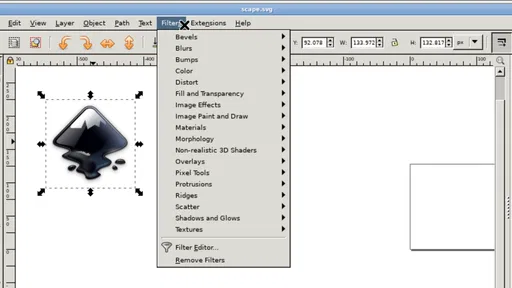
Now, let’s talk about the interface. It’s always a challenge to cram all the functionality of a desktop app into a mobile format, but Inky does a pretty solid job. The layout is intuitive, and though it may feel a bit cramped on smaller screens, it’s perfectly usable. You’ll find all your favorite tools like the pen, pencil, and shapes, just a tap away.
One thing I noticed is that the app performs best on devices with larger screens or tablets. If you’ve got a phablet or tablet, you’re in for a treat. The touch controls can take a bit of getting used to, especially if you’re used to a mouse or stylus, but after a few tries, it becomes second nature.
Features That Stand Out
Inky packs a punch when it comes to features. You can work with layers, apply gradients, and even tweak nodes with precision. The app supports a wide range of file formats, so importing and exporting your creations is a cinch. Plus, you can sync your projects with cloud storage services, making it easy to switch between devices or share your work with others.
One of my favorite features is the ability to customize the interface. You can move toolbars around and set up your workspace just the way you like it. This flexibility is a major plus for anyone who likes to have everything just so.
Performance and Reliability
Performance-wise, Inky is impressive. It handles complex projects with ease, though you might notice some lag if you’re working with super high-resolution images or loads of layers. This is more a limitation of mobile hardware than the app itself, so I can’t knock it too much for that.
In terms of reliability, I haven’t encountered any major crashes or bugs. The app feels stable, and the developers seem committed to providing regular updates and improvements, which is always reassuring.
A realistic on-the-go workflow
Imagine you are on the way to class or waiting for an appointment and remember that a poster illustration needs one last adjustment. With a tablet, I could open the project, inspect the layers, change a color or reposition an element, and save it for a later review on a computer. That is a believable strength: the mobile session handles a contained task, while the desktop remains the place to check fine alignment and the final composition.
I would avoid making the mobile version the only copy of a time-sensitive project. Keep a separate working version until you have checked the saved result, and avoid making several major changes in a rushed session. This small bit of discipline makes the app more useful, because it lets you take advantage of spare moments without turning every quick edit into a high-stakes handoff.
Choosing it over a conventional drawing app
Compared with a typical mobile drawing or painting app, Inky is appealing when the job depends on editable vector shapes and paths rather than a brush-based image. A dedicated mobile art app may feel quicker for drawing directly on glass, especially for loose sketches, but it may not suit someone who specifically wants an Inkscape-style workspace. The choice is less about which tool is universally better and more about whether you need vector editing or a touch-first sketching experience.
It is also worth separating the app’s role from the role of a full desktop setup. If most of your work involves detailed layout, many objects, or long sessions, a computer gives you a larger canvas and more comfortable precision. I would use Inky as a companion for continuity and focused adjustments, not assume that the presence of desktop tools makes a phone equal to a desktop workstation.
Who Is Inky For?
If you’re a graphic designer or artist who loves working on the go, Inky is definitely worth checking out. It’s also a great tool for students or anyone learning vector graphics, as it offers a hands-on way to practice and experiment without needing a full desktop setup.
For professionals, it might not replace your main workstation, but it’s an excellent companion for sketching out ideas and making adjustments on the fly. Plus, the ability to work in a familiar environment with Inkscape’s features is a huge bonus.
Price, support, and the kind of commitment it asks for
Inky is a paid Art & Design app from UserLAnd Technologies, priced at $1.99, with an Everyone age rating. It has an average rating of 2.8 from around 540 ratings, alongside 74 written reviews and over 10,000 installs. I would read that middling score as a reason to set realistic expectations: this is a specialized way to access desktop vector editing, not an effortless mobile drawing tool for everyone.
The app was released on January 29, 2023, and its current version is 26.04.24. It requires Android 7.0 or later. Those details make the practical decision straightforward: check that your device meets the minimum before paying, and consider whether you are comfortable setting up the supporting apps mentioned during installation. If you want a one-tap drawing app with no desktop-style learning curve, that setup may feel like unnecessary friction.
My recommendation is strongest for existing Inkscape users, students learning vector concepts, and people who occasionally need to continue a vector project on an Android tablet. I would skip it if you mainly want to doodle, paint, or create polished artwork using a phone alone; a touch-first art app or a desktop editor will likely suit those jobs better. Inky earns its place when compatibility with an Inkscape-oriented workflow matters more than a perfectly streamlined mobile interface.
Overall, Inky is a fantastic app that brings powerful vector editing to Android devices. It’s not without its quirks, but if you can look past them, you’ll find a robust tool that’s perfect for creative minds on the move. Give it a try and unleash your creativity wherever you are!
Verdict
Strengths of Inky - Run Inkscape on Android
- Supports SVG editing with ease.
- Offers a wide range of vector tools.
- Compatible with many file formats.
- Allows layers and grouping management.
- Open-source and free to use.
Limitations of Inky - Run Inkscape on Android
- Requires a stylus for precision.
- Limited compatibility with older devices.
- Occasional lag on complex files.
- Initial learning curve for beginners.
- No offline tutorials included.
Other Releases by UserLAnd Technologies
View All
GIMP
Art & Design3.2

OG Trail - Travel to Oregon
Educational4.1
Similar Picks in This Category
View All
Canva: AI Photo & Video Editor
Canva4.8

PENUP – Drawing-sharing SNS
Samsung Electronics Co., Ltd.4.5

Crafto
Kutumb App4.6

Sketchbook
Sketchbook4.1

ibis Paint X
ibis inc.4.5

Adobe Express: AI Photo, Video
Adobe4.6
Frequently Asked Questions
What is Inky and how does it function on Android devices?
Inky is an application that allows users to run Inkscape, a popular vector graphic design software, on Android devices. It functions by providing a streamlined interface tailored for touchscreen interaction, enabling users to create and edit vector graphics on the go. With Inky, you can access most of the features available on the desktop version, making it a versatile tool for graphic designers and artists who need to work remotely.
Is Inky compatible with all Android devices?
Inky is compatible with most Android devices running Android 5.0 Lollipop or higher. However, performance may vary depending on the device's specifications such as RAM, processor speed, and screen resolution. For optimal performance, it is recommended to use devices with higher RAM and processing power. Always check the app’s compatibility on the Google Play Store before downloading.
Does Inky support file formats used in Inkscape?
Yes, Inky supports a wide range of file formats that are commonly used in Inkscape, including SVG, PNG, PDF, and more. This allows users to seamlessly open, edit, and save files in formats that are compatible with the desktop version of Inkscape. This feature ensures continuity and ease of workflow between different devices and platforms.
Are there any in-app purchases or subscriptions required for Inky?
Inky offers a free version with basic features, but for advanced tools and functionalities, there might be in-app purchases or a subscription model available. These options typically provide access to additional resources, enhanced features, and regular updates that improve the overall user experience. Be sure to check the pricing details within the app for more information.
How user-friendly is Inky for beginners in graphic design?
Inky is designed to be user-friendly, with an intuitive interface that simplifies the complex tools of Inkscape for beginners. It includes helpful tutorials and guides to assist new users in learning the basics of vector graphic design. While there might be a learning curve initially, the app's design focuses on minimizing complexity and enhancing accessibility for users of all skill levels.
